ELEC 432
In the Lab
When we use Labview to simulate a system or test a concept we can connect a
signal generator block to the input, a waveform display to the output, and
press
RUN.
If we want to use real world analog inputs and outputs, things get a bit more complicated.
Commands must be issued to configure and start the hardware,
interrupts must be handled,
data must be collected into blocks and delivered to the appropriate process,
and error conditions such as buffer overflow or underrun must be detected and handled.
Fortunately, Labview takes care of most of the details for us,
but we still need to be aware of what's going on
in the background
and occasionaly help it along.
Part 1: Analog I/O with the Sound Card
There are two shortcomings to sound card access in Labview:
-
There are no Express VIs available, so a set of low level VIs must be used.
-
Resolution is limited to 16 bits and maximum sample rate to 44.1 kHz,
even if the sound card is capable of more.
Hopefully future versions of Labview will remove these, but for now we'll
utilize ready made shell VIs to handle the first and simply ignore the second.
| |
|

|
Selecting the sound card: |
|
Sound cards are identified in Labview by a
device number.
The safest way to select from among multiple available cards is to set the
device number to zero, which specifies the default sound card, and use the
Sounds and Audio Devices
control panel to select the default.
To do this:
-
Open the
Sound and Audio Devices
control panel.
-
Select the
Audio
tab.
-
Select either
Soundmax Digital Audio
or
M-Audio Delta 44 Multi
as the default device for both Sound playback and Sound recording.
-
Press
Apply.
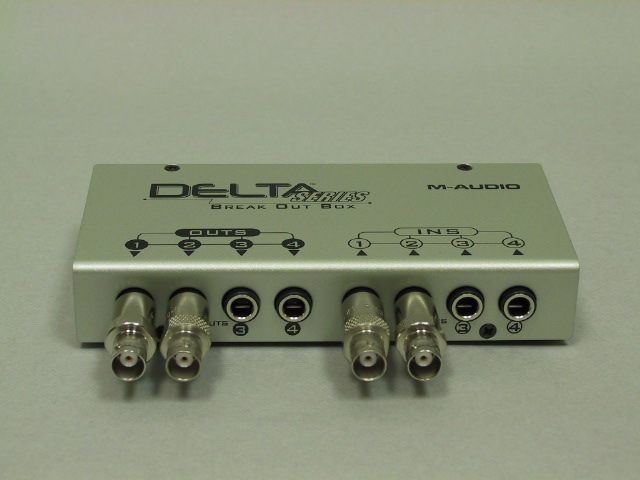
The M-Audio card is more convenient since there are 1/4" phone plug adapters
in the
break-out box
that allow for direct connection of BNC cables.
|
Sound card input: |
|
Load the sound card input example VI:
sc_in.vi.
Select
Show Block Diagram
from the
Window
menu
to display the block diagram.
The functions of the
SI CONFIG
and
SI START
VIs
must be performed once before conversion begins,
and the
SI CLEAR
must be called when conversion is complete,
so these are placed outside the loop.
Each time the
SI READ
VI is called it outputs one block
(of size
Buffer Size)
of samples.
The thin blue wires (task ID)
and the stripped pink wires (error)
which chain the VIs together provide the
data flow dependency to insure that they are
called in the proper sequence.
This VI does nothing with the samples except to display them
on a waveform chart.
Connect the function generator to input channel 1
and verify that the VI is working properly.
|
Sound card output: |
|
Load the sound card output example VI:
sc_out.vi
and examine its block diagram.
This VI produces a sine wave and sends it to the sound card output,
as well as displaying it on the front panel.
Note the
SO WAIT
VI.
When reading from the sound card input, the rate at which samples are acquired
limits the rate of execution of the rest of the VI.
The waveform generator can produce samples at a much faster rate than the
sound card output can dispose of them, so to prevent running out of memory
trying to store all these samples, the
SO WAIT
VI blocks execution until the sound card has consumed all the samples
in its current block.
Connect output channel 1 from the sound card to the scope and observe the
output signal.
|
Combined input and output: |
|
Load the VI:
sc_inout.vi
which combines input and output.
Examine the block diagram, noting that since the input now
controls the rate of execution, the
SO WAIT
block is no longer needed.
This VI does nothing but connect the input directly to the output,
but to make it slightly more interesting, it now does it in stereo
(note the doubled line between
SI READ
and
SI WRITE
denoting a 2-D array.
Run this VI with the input connected to the function generator and the output
connected to the scope and verify that is working correctly.
|
Part 2: Displaying Data
Waveform charts and graphs have a number of options to control the display of data.
These may be accesed by right clicking over the front panel indicator while the
VI is stopped.
The location at which you click is important: clicking over an axis selects
options for that axis,
clicking over the display area displays options for the entire display, with
sub-menus for the axes.
Experiment with the options
(in conjunction with the User's Manual and Help files if your sense of adventure
becomes overtaxed).
Part 3: Basic Processing
Simply reading samples of a signal and sending them directly to the output
is not very exciting,
the same function could be performed with a piece of wire.
The whole point of DSP is to
process
the signals, so let's get started doing that.
Part 4: Digital Radio Breadboard
So far we've been able to make all of our interconnections with BNC
cables, since everything we wanted to connect either had BNC connectors
on it, or we could find a BNC adapter for the type of connectors that it had.
Although a BNC breakout box is available for the NI 6251 DAQ card,
we have chosen a more flexible route, similar to what we have done in 241
and 242 lab, i.e. build a breadboard/interface module system for
constructing our circuits and accessing their inputs and outputs.
In fact, we could use the new
241/242 breadboard since it has all the necessary connectors
(and if it didn't we could build an additional module that did).
However this would be unsatisfactory because
-
Most of the the chips we will want to use only come in surface mount packages.
-
Even if we made adapters for them, the grounding
and shielding
limititations would cause
us to pick up and radiate too much noise.
So instead, we have our own
Digital Radio Breadboard.
This is a modular system like the 241/242 breadboard, but
-
The modules are smaller, so that we can have more of them.
-
Each module has its own power supply regulators.
-
Instead of the solderless breadboard strips, prototyping
techniques are used which allow for the use of surface mount components
and provide a good ground plane.
-
All of the jumpers are coax rather than unshielded wire.
For this exercise, all we need is the ability to connect to the
NI 6251 cable, so we will use only a few of the
connector modules
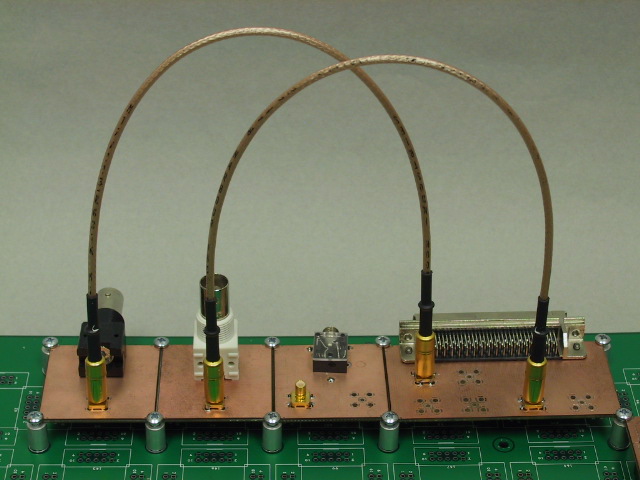
This picture shows Channel 0 of the A/D converter connected to the
black BNC connector and Channel 0 of the D/A converter connected to the
white BNC connector, which is the configuration we will use in the first part of
the lab.
The small, gold coax jumper connectors are SMB type connectors.
SMB connectors are push-on, so no rotation is required, just a
strong push or pull.
|
Warning
Because of their small size, SMB connectors are somewhat delicate.
When inserting or removing an SMB connector be sure that the two axes are
aligned and parallel, and that you apply force only in an axial direction.
Any rocking or sideways force may damage the connector
|
| |
|
|
Set up connections: |
|
If the breadboard is not set up as shown in the
picture,
use SMB coax jumpers to connect the black BNC connector to the left hand
plug on the DAQ module and the white BNC connector to the left-most
plug on the DAQ module.
Connect the RF signal generator to the A/D input (black BNC)
and the scope to the D/A output (white BNC).
|
Terminate the A/D input: |
|
The A/D inputs to the DAQ card have a very high input impedance.
Unless a low impedance DC path to ground is provided,
an offset potential will build up and drive the input into saturation.
The signal generator has a capacitor coupled output, so be sure use a BNC-T
with a terminator resistor at the connection to the A/D input.
|
Part 5: Analog I/O with the NI 6251
For the NI 6251 data acquisition card, Express VIs are available to
eliminate the need for low level VIs.
To avoid terminal boredom, we will skip over input-only and output-only
versions and go directly to a combined input and output shell.
| |
|
|
Download a sub-VI: |
|
The VIs used in this and subsequent parts require a sub-vi:
daq2.
Download and save this VI.
|
Load the VI: |
|
The input/output VI shell for the 6251 is
ni_inout.
You can either download and save this to the same directory as the sub-vi,
or run it directly from the browser link,
in which case it will ask you where you saved daq2.vi.
(Ignore the message telling you that it found daq2.vi in a different place
than it expected to find it.)
When it is loaded, display the block diagram.
|
Converting express to regular VIs: |
|
The analog input VI (daq2.vi) was initially a DAQ Assistant Express VI, but has
been converted to a regular VI and modified to allow external control of the
channel, sampling rate, and block size
(hence the yellow rather than blue background).
If you wish to do this with other Express VIs,
right click on the VI and select
Open Front Panel.
|
Try it out: |
|
Set the signal generateor to 200 kHz, -30 dBm.
Start the VI and observe the signal on the waveform display and the scope.
|
Display update rate: |
|
With the sound card, we could display each block of samples without consuming
much CPU time.
With a sampling rate over 20 times faster, the overhead of displaying all the samples
could consume a significant fraction of our processing capacity.
By displaying only every n-th block of samples, we can significantly reduce the
display overhead, and actually make the display easier to read.
The control marked
Display Rate
does this by only enabling the waveform graph one out of every N times
through the loop.
Examine the block diagram to see how this works.
|
Observe aliasing: |
|
Increase the signal generator frequency
(say, in multiples of 100 kHz) and observe how the signal is aliased as it
passes through multiples of fs/2.
Since the input signal is bandlimited, with a bandwidth less than fs/2,
no information is lost.
However, note that as the order of aliasing is increased, the amplitude of
the digitized signal decreases.
Find the input frequency at which the digitized signal is 3 dB down from its
unalised value.
|
Part 6: A Digital AM Radio
Enough messing around. Let's build something useful.
Our next VI
adds some processing to the ni_inout VI.
| |
|
|
Load the VI: |
|
The VI used in this part,
ni_proc
also uses the daq2 VI, so use the same procedure as in the previous part to
load this VI.
|
The front panel: |
|
This VI combines an AM radio receiver, a spectrum analyzer, and a waterfall display,
so there's a lot going on.
The block marked "Radio"
contains the controls for tuning and adjusting the radio.
The block marked "Input" selects the input channel and sampling parameters.
These controls should not require adjustment for this exercise.
The two graphs in the center display the spectrum of the input and the
demodulated output waveform, respectively.
The large display on the right is a
waterfall display
which shows how the spectrum changes with time.
Frequency is plotted on the y-axis, time on the x-axis, and amplitude
(the z-axis) is indicated by color: dark blue indicates low amplitude,
white indicates high amplitude.
|
The block diagram: |
|
Examine the block diagram.
The spectrum analysis is handled by an Express VI,
requiring almost no effort on our part.
The waterfall display is simply a matter of connecting the spectrum to a different
type of indicator (an
Intensity Chart).
The filtering and generation of the local oscillator waveform we've seen before.
There are two separate AM detectors, an envelope detector, implemented with
an absolute value block, and a direct conversion
or
product detector
which simply multiplies the received signal by the local oscillator signal.
The only new trick is the selector
(the triangle with the "wishbone" in it) which is used to switch the filters
in and out of the circuit and to select one of the two detector outputs.
|
Initial connections: |
|
With the inputs and outputs connected as in the previous part
(signal generator to input, scope to output)
set the signal generator to 120 kHz, -30 dBm.
|
Receiving a signal: |
|
Set the Radio group controls as follows:
- Carrier Frequency:
-
120000 Hz.
- Fine Tune:
-
0.
- Clarify:
-
0.
- RF Filter:
-
120000.
- Volume:
-
25
- RF Filter (button):
-
off.
- AF Filter (button):
-
on.
- Detector:
-
Envelope.
Start the VI and verify that the spectrum display is what it should be.
|
Receiving an aliased frequency: |
|
Set the signal generator to 1.12 MHz.
The displays and output should be essentially the same as before.
Adjust the signal generator frequency up and down and observe the
direction in which the spectrum display moves.
Set the signal generator to 880 kHz.
Again move the signal generator frequency up and down and
observe the direction of motion of the spectrum display.
|
Demodulating AM: |
|
Return the signal generator frequency to 120 kHz.
Set the signal generator modulation to internal AM, either 400 Hz
or 1 kHz and turn the modulation on.
Observe the demodulated waveform on the VI's waveform dispay and on the scope.
Try both envelope and product detectors, AF filter both on and off.
Unless the signal generator and A/D sampling clock are both exactly synchronized,
it will be necessary to adjust the
Clarify
control (the fine fine-tuning control) to stabalize the output signal.
|
Receiving AM radio stations: |
|
Disconnect the signal generator and connect the outside antenna
(the cable with the blue tape)
to the A/D input.
Be sure to leave the terminator connected to the A/D input.
Start the VI and turn the RF filter
OFF.
Observe the large number of spikes in the spectrum display.
These are the carriers of the local AM radio stations and should
be located on multiples of 10 kHz.
On the waterfall display the modulation sidebands should be clearly visible.
|
Receiving one AM station at a time: |
|
As long as none of the stations have aliased on top of each other,
it is possible to recieve each one individually.
With the envelope detector, this is done by placing a bandpass filter
before the detector, centered on the desired frequency.
With the product detector, the local oscillator is set to the desired frequency,
shifting the signal back down to baseband.
The AF filter then removes the undesired channels, which have also been
shifted in frequency.
|
Listening to AM radio: |
|
Move the SMB coax jumper from the module with the white BNC connector to the one
with the phone jack.
Plug a speaker into the phone jack and turn it on.
Try tuning in a few stations using both the envelope and product detectors.
|
Using a preselector: |
|
We are able to successfully receive AM signals with this receiver only because
they are the strongest signals out there.
In general, we need to insure that unwanted aliases don't reach the A/D converter
so that they can't interfere with the desired signals.
This is done by placing a filter ahead of the A/D converter to remove the
undesired frequencies. If we are using harmonic sampling, we need to use a
bandpass filter to remove aliases below as well as above the desired frequency.
Such a filter is called a
preselector.
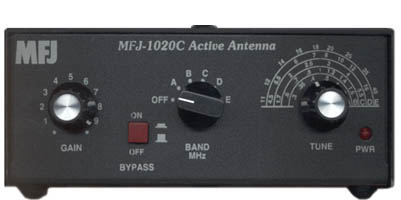
The
MFJ-1020C
is a tunable preselector combined with an RF amplifier.
Connect the antenna to the input of the preselector
and connect the A/D input to its output.
Set the
GAIN
control to maximum, the
BYPASSswitch
OFF,
and the
BAND
switch to
B.
On the VI, turn the RF filter off and select the envelope detector.
You should be able to select different stations by adjusting the
TUNE
control on the preselector.
|
Part 7: An AM Transmitter
If we can build an AM receiver, then an AM transmitter should be no problem.